After a Power Cut
Follow these steps in order. Don't rush — some things take several minutes to start up.
⚡ Step 1 — How Long Was the Power Out?
The backup batteries (UPS) keep everything running for up to about 15 minutes. This gives time for a short outage to pass without anything shutting down.
If the power was out for less than 15 minutes: - Everything may still be running on battery - Skip to Step 4 — Check Your Apps to see if things are already working - If they are, you're done
If the power was out for a long time: - The machines (Pacific, Lotus, Cooper) will have shut themselves down safely to prevent data corruption - Follow all the steps below in order
If the power was out for a very long time: - The UPS batteries may have gone completely flat - This can prevent the machines from starting back up until the UPS has built up a little charge again - If a machine won't turn on, give the UPS 20–30 minutes to recharge, then try again
🌐 Step 2 — Check Internet Access and Network Connectivity
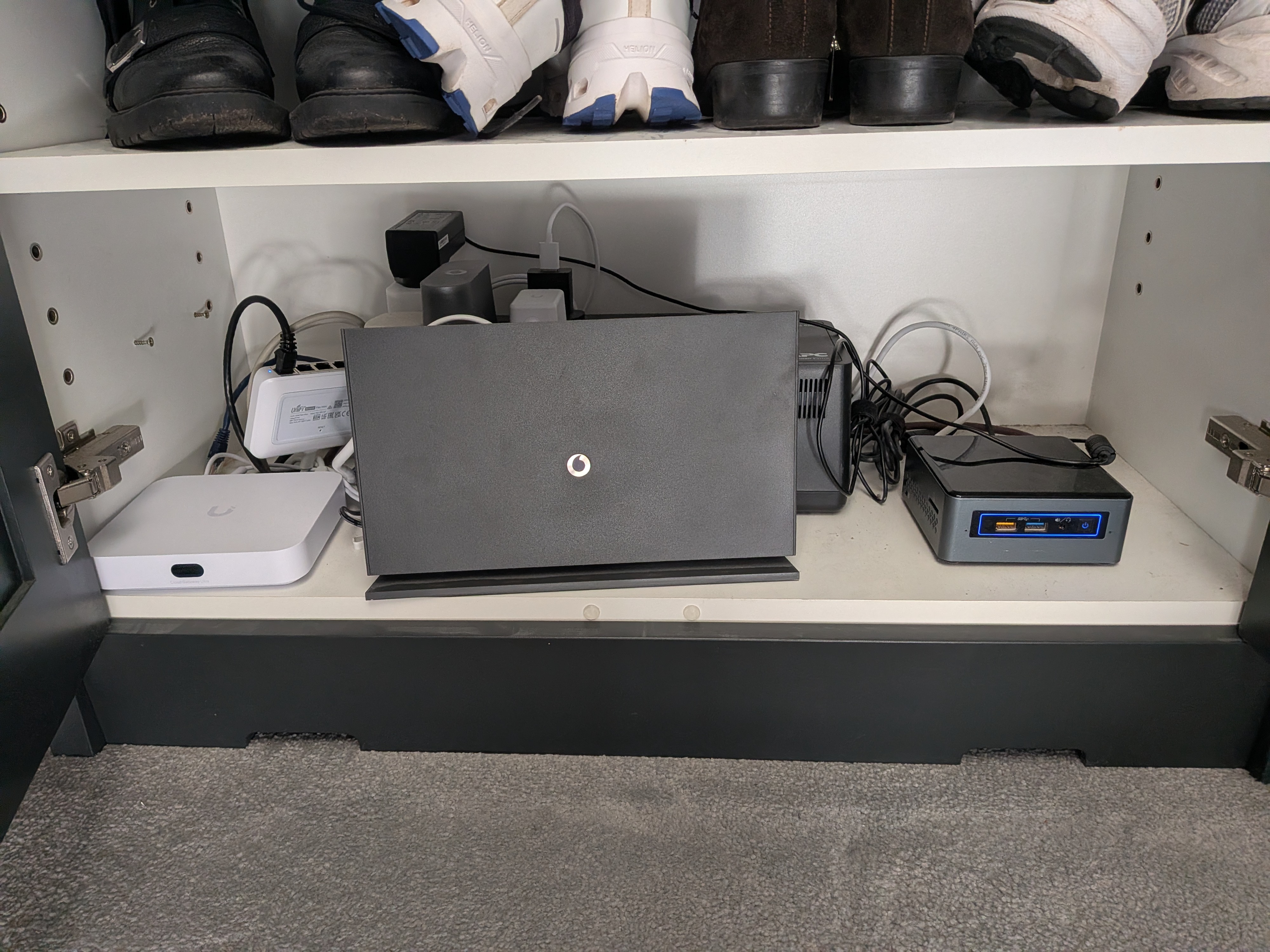
The router (UCG Ultra, white box) and the Vodafone modem (black box) are both in the bottom of the bedroom wardrobe, alongside Pacific.
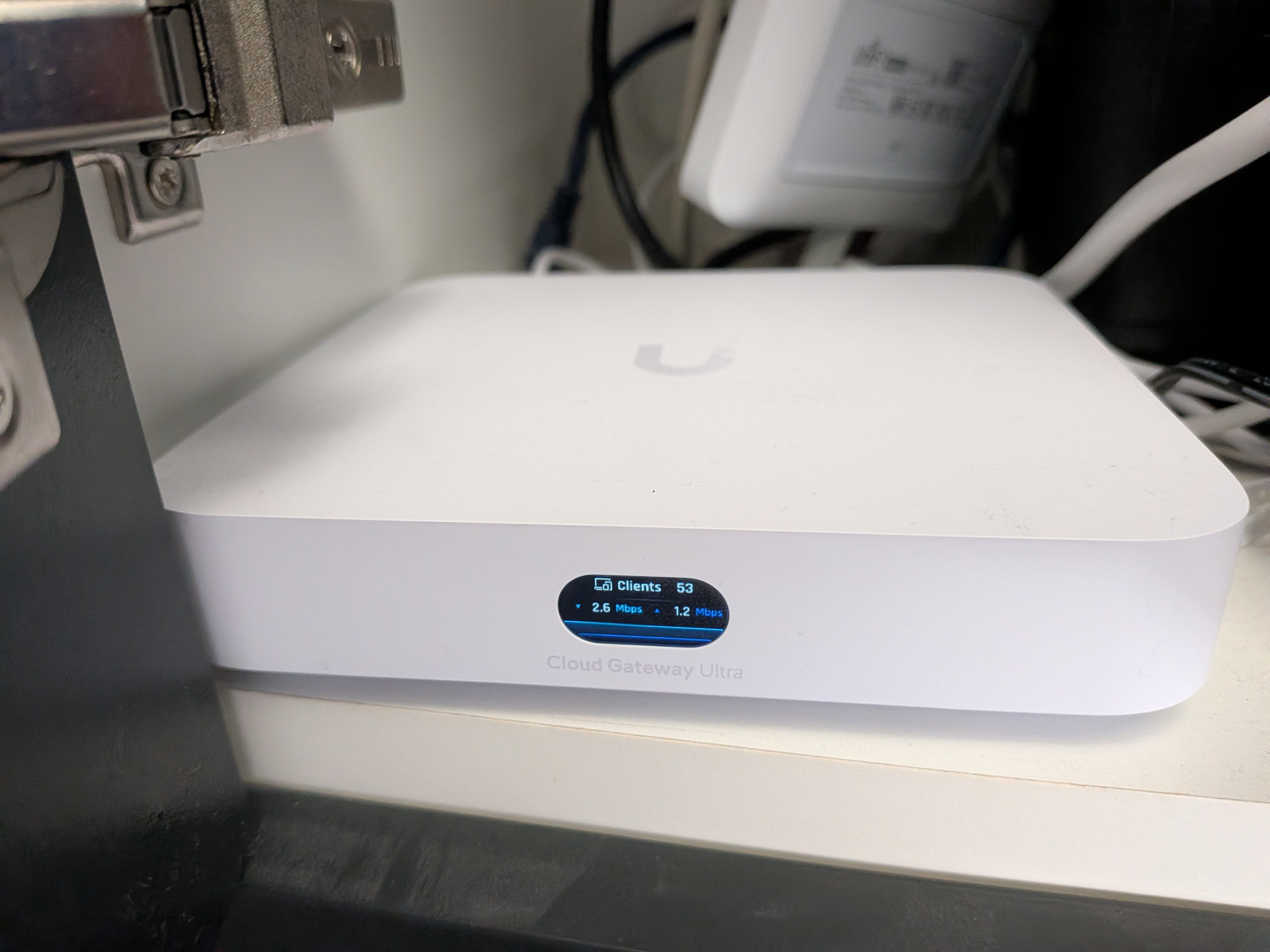
Check your Wi-Fi first — does your phone show it's connected to 2SVT-Main? If yes, the router is back up and the home network is working. When the UCG Ultra is running normally its screen shows live traffic numbers that change constantly:
Check for internet access — open a browser and try loading a website. If the Wi-Fi is connected but there's no internet, follow the Internet Is Down guide to work out whether the problem is inside the house or with Vodafone.
🖥️ Step 3 — Check Whether the Machines Have Restarted
All three machines are supposed to start automatically when power returns. Sometimes this doesn't happen and they need to be switched on manually by pressing the button on the unit.
 Pacific (mini PC, in the bedroom wardrobe)
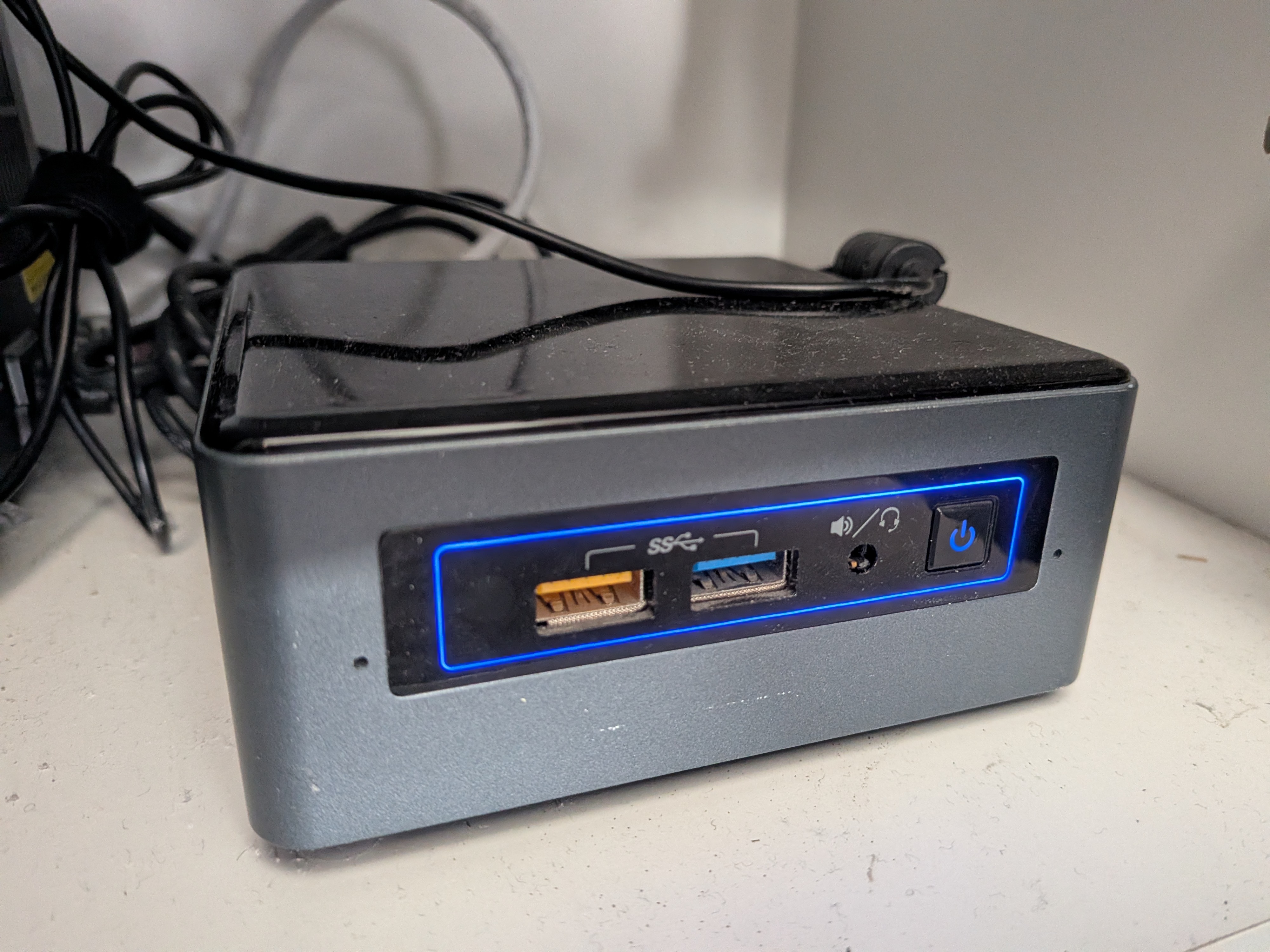
Check the light on the power button on the front of the unit:
| Light | What it means | What to do |
|---|---|---|
| No light | Pacific is off | Press the power button once and wait a few minutes |
| Solid blue | Pacific is on and healthy | Good — Home Assistant should start within 15 minutes |
| Flashing orange | Something went wrong starting up | Press the power button once to try a restart |
If it flashes orange again after restarting: this is a serious problem that Daniel will need to fix. Turn Pacific off (hold the power button) or unplug it. Then go to Home Assistant Isn't Responding and follow Step 3 to start the backup Home Assistant on Lotus instead.
If the light is solid blue: Home Assistant should start on its own within 15 minutes. Try opening the app or http://192.168.1.12:8123 — if it loads, you're done.
🗄️ Lotus (main storage box, in the office)
Lotus should start automatically. If it hasn't, press the power button on the front. It boots in about 5 minutes and will beep once when it's ready.
🗄️ Cooper (backup storage box, in the living room)
Cooper is not needed for any day-to-day services — it's only used as a backup for important files. It should still be switched on though. Press the power button if it isn't already on.
If you can get internet access and the machines back on, Daniel can fix almost everything else remotely.
📱 Step 4 — Check Your Main Apps
Once the boxes are back, try the apps you normally use.
| App | How to check |
|---|---|
| Home Assistant | Open the HA app, or in a browser: http://192.168.1.12:8123 (home Wi-Fi) or https://ha.djchome.uk (anywhere) |
| Plex (films/TV) | Open the Plex app or visit your usual Plex address |
| Doorbell | Press the doorbell button — if it sounds, it's working |
❓ If Something Still Isn't Working
- Go to Common Issues and find the relevant app
- Try the simple steps listed there
- If still not working, contact Daniel
📋 What Daniel Will Need to Know
When you contact Daniel, it helps to tell him:
- Roughly how long the power was out
- Whether the router display looked normal
- Whether the Proxmox page at https://192.168.1.10:8006 loaded
- Whether the pages at http://192.168.1.80 (Lotus) and http://192.168.1.60 (Cooper) loaded
- Anything unusual — lights, error messages, things that started then stopped again