The Internet Isn't Working
If you're unsure about any step, it's always fine to contact Daniel first.
First, check: Is it just one device, or everything?
- Just one device → restart that device (turn it off and on). Not a homelab problem.
- Everything → follow the steps below.
 Step 1 — Check the Vodafone modem
The internet comes in via a Vodafone Wi-Fi Hub in the bedroom wardrobe, plugged into the phone socket behind the curtain. It is backed up by the UPS.
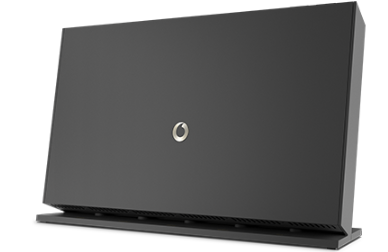
It has several lights on the front. The most important one is the Internet light (sometimes labelled Broadband):
| Internet light | What it means |
|---|---|
| Solid white | Connected — modem is fine |
| Flashing white | Connecting — normal during startup, wait 5 minutes |
| Red after 5+ minutes | Cannot reach Vodafone — possible line or outage problem |
The Power light can also tell you something:
| Power light | What it means |
|---|---|
| Solid white | All good |
| Solid red (after startup) | System problem — restart the modem |
| Slow pulsing red | Firmware update in progress — leave it alone |
If the internet light goes red or stays red after 5 minutes:
- Turn the modem off at the plug, wait 30 seconds, turn it back on, and wait 5 minutes for it to reconnect
- If it's still red after restarting, check whether Vodafone have a known outage in our area — use your mobile data to visit: https://www.vodafone.co.uk/network/status-checker
- Enter our postcode. If it asks you to log in, the details are in Bitwarden under Vodafone NEW Broadband Account
If there's a reported outage, it will come back on its own — nothing more to do.
🔗 Step 2 — Check the cables
It's unlikely but worth checking — especially if you've been behind the curtain or in the wardrobe recently. Make sure the cable between the Vodafone modem and the phone socket in the wall hasn't been knocked loose at either end.
 Step 3 — Check the UniFi gateway box
The UniFi gateway (UCG Ultra) is the small square white box with a screen on the front, also in the bedroom wardrobe. It connects to the Vodafone modem and directs all the network traffic around the house — so it needs to be working too.
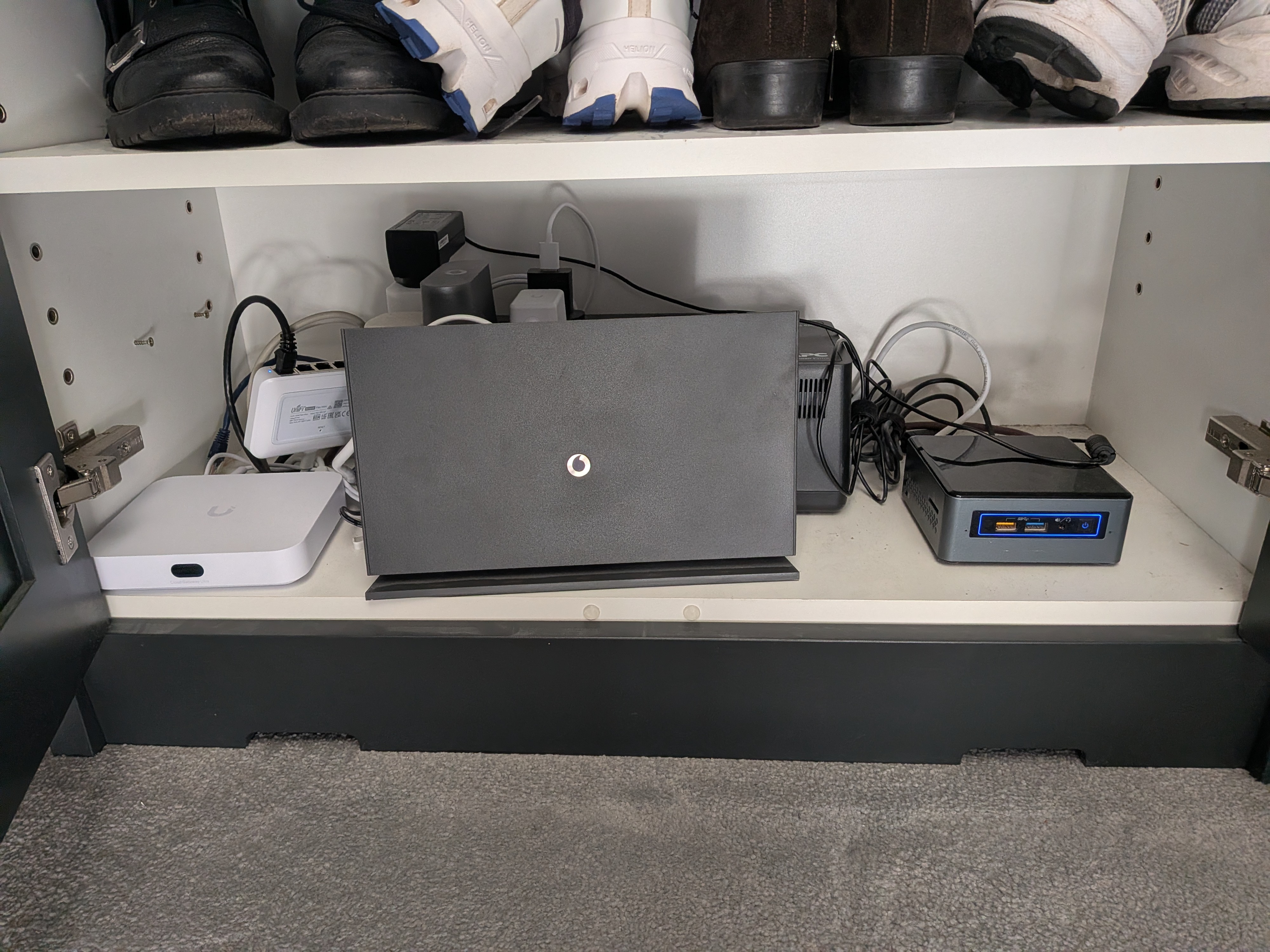
When it's working normally: The screen shows download and upload traffic values that are constantly changing, and the LED on the device is steady blue.
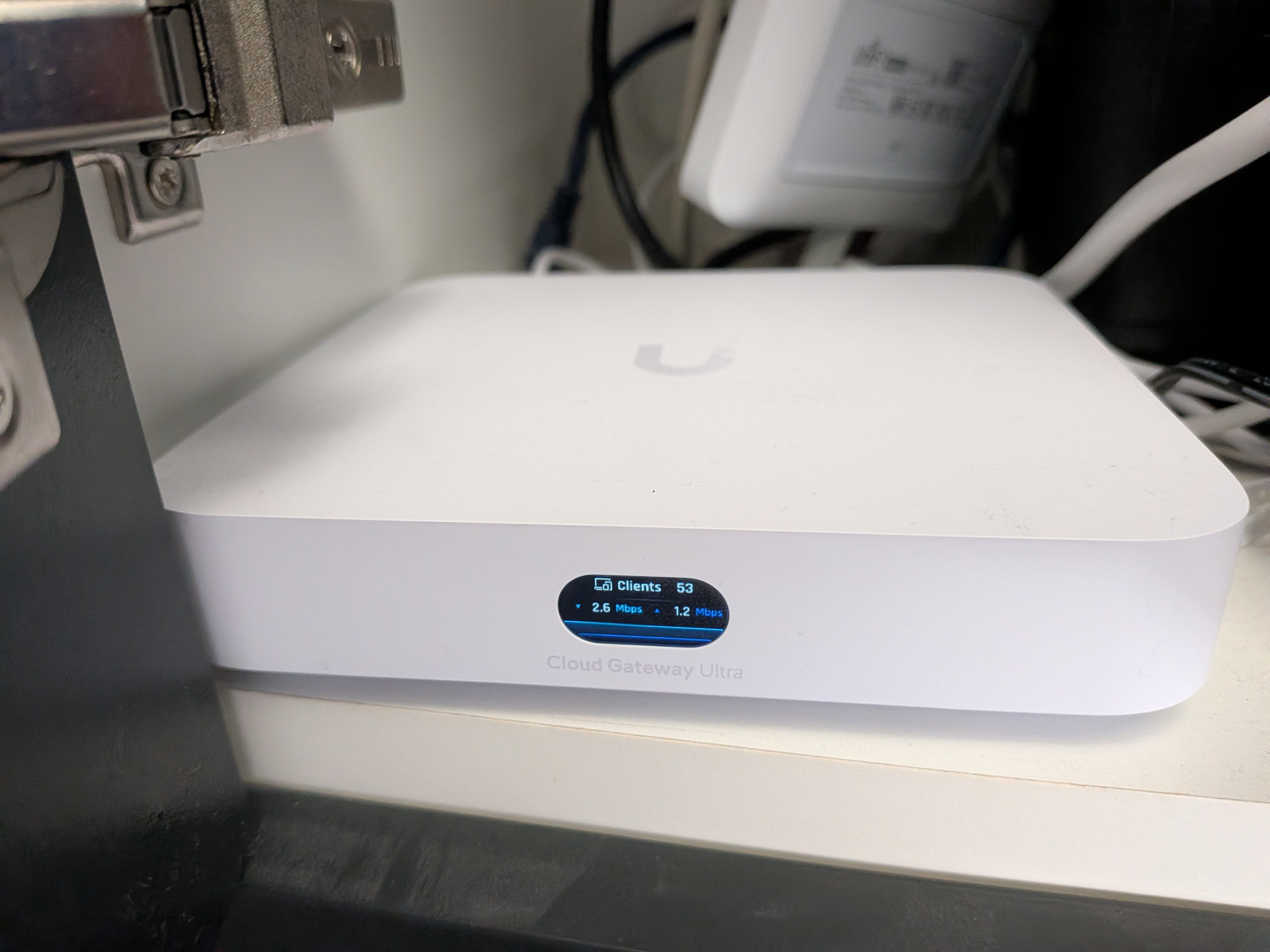
Signs of a problem: - Screen has frozen — numbers are not changing - LED is blue, flashing off every few seconds — this means it has lost its internet connection
If either of these is happening: 1. Pull the USB-C power cable out of the back of the box 2. Wait 30 seconds 3. Plug it back in 4. Wait about 2 minutes for it to fully restart — the screen will reappear and the LED will turn steady blue 5. Check if the internet is back
💻 Step 4 — Check the Vodafone modem settings page
If the modem looks fine and the cables are secure, check the modem's own status page. This only works when you're connected to the home Wi-Fi.
- Open a browser and go to: http://192.168.99.254 — or tap Vodafone Router on your dashboard
- Log in — the password is saved in your Bitwarden under Vodafone router November 2003
- Look for any error messages or status indicators showing a problem with the connection
If you can't reach http://192.168.99.254 at all, this suggests a more fundamental problem with the home network rather than just the internet connection. Contact Daniel.
✅ What still works without internet
Most things in the house carry on working normally without internet — the smart home is designed this way:
| What | Works without internet? |
|---|---|
| Lights, heating, blinds | ✅ Yes — Home Assistant runs locally |
| Home Assistant app (at home) | ✅ Yes — use http://192.168.1.12:8123 in a browser |
| Plex (films/TV already downloaded) | ✅ Yes — use local address |
| Doorbell | ✅ Yes |
| Gabriela's homepage | ✅ Yes — http://gabriela.home is served locally |
| This documentation (docs.home) | ✅ Yes — http://docs.home is served locally |
❌ What doesn't work without internet
| What | Why |
|---|---|
| ha.djchome.uk and other *.djchome.uk addresses | These require Tailscale VPN, which needs internet |
| Home Assistant app (away from home) | Needs internet to connect remotely |
| Plex away from home | Needs internet to stream remotely |